
Introduction:
In DWIN T5L DGUSII displays, the SD card interface plays an important role in downloading project files, configuration data, font libraries, and image resources into the display’s FLASH memory. However, many users face issues where the DWIN display fails to detect the SD card or shows zero files during the download process.
One of the most common reasons behind this issue is incorrect SD card formatting. DWIN displays require the SD card to be formatted in FAT32 format with proper allocation settings. Simply formatting the card using the standard Windows right-click format option may not work correctly, especially for non-official DWIN SD cards or higher-capacity memory cards.
In this guide, we will explain:
- The correct SD card format required for DWIN displays
- How to properly format the SD card using the DOS command method
- The correct DWIN_SET folder structure
- Important precautions during SD card downloading
- Solutions when the DWIN display cannot recognize the SD card
By following these steps, you can avoid common SD card detection problems and ensure successful project downloads to your DWIN HMI display.
Understanding the DWIN SD Card Interface:
The DWIN T5L DGUSII display uses a MicroSD (TF) card interface to transfer project files, configuration settings, fonts, and image resources into the display memory. During startup, the display automatically checks the SD card for a folder named DWIN_SET and begins the download process if the required files are detected.
Unlike normal file storage usage, the SD card in DWIN displays is mainly used for:
- Project downloading
- Firmware and configuration updates
- Font library installation
- Background image transfer using ICL files
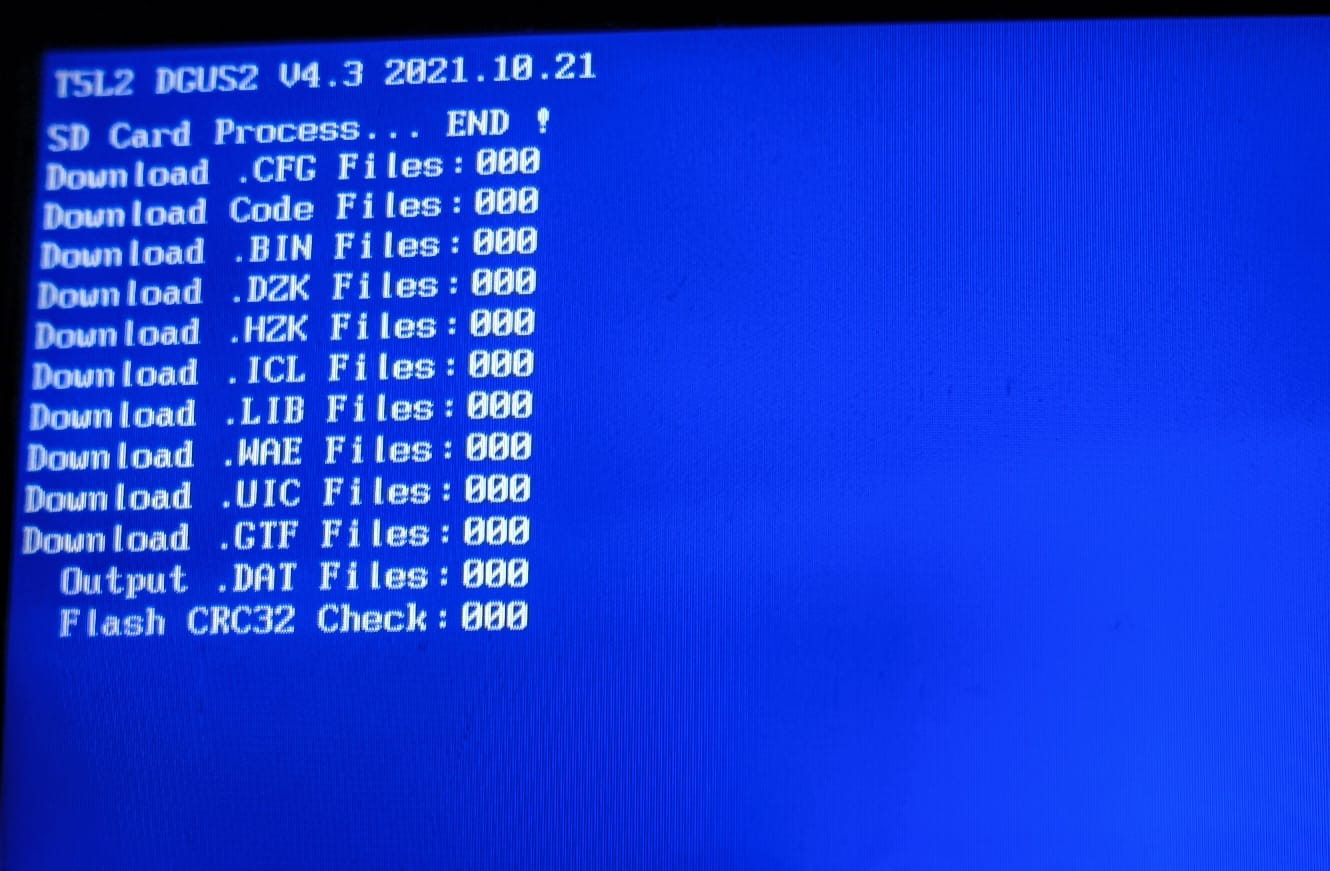
Because of this, the SD card must follow specific formatting and folder structure requirements. If the card is not prepared correctly, the display may:
- Fail to detect the SD card
- Show “0 files” during blue screen downloading
- Not enter the download interface
- Display black screen issues after incomplete downloads
To ensure stable operation, DWIN recommends using FAT32 formatting and placing all project-related files inside the DWIN_SET folder located in the root directory of the SD card.
Common Reasons Why DWIN Display Cannot Detect the SD Card:
If the DWIN display does not recognize the SD card or fails to start the download process, the issue is usually related to formatting, folder structure, or improper handling of the SD card. Below are the most common causes and their solutions.
1. SD Card Not Formatted in FAT32
DWIN displays only support SD cards formatted in FAT32 format. If the card is formatted as NTFS or exFAT, the display may fail to detect it.
Important: Formatting the SD card using the normal Windows right-click format option may not correctly format the card for DWIN displays, especially for SD cards larger than 16GB.
2. Incorrect Allocation Unit Size
The recommended allocation unit size for DWIN SD cards is 4096 bytes. Incorrect allocation settings can cause file detection problems during startup.
3. Missing DWIN_SET Folder
The display only recognizes files placed inside a folder named:
DWIN_SET
This folder must be created in the root directory of the SD card. Any other folder name will not be recognized unless the display is specially customized.
4. Wrong File Placement
All required project files such as:
- ICL files
- Font libraries
- Configuration files
must be placed inside the DWIN_SET folder. Files outside this folder will be ignored by the display.
5. Using JPEG Images Instead of ICL Files
In T5L DGUSII displays, JPEG images cannot be directly recognized. Background images must first be converted into ICL format using DGUS software.
6. Hot Swapping the SD Card
DWIN displays do not support hot swapping. Inserting or removing the SD card while the display is powered ON may:
- Prevent downloading
- Damage FLASH memory
- Cause black screen issues
Always:
- Power OFF the display
- Insert the SD card
- Power ON the display to start downloading
7. Power Failure During Download
Interrupting power during the blue-screen download process can corrupt the project files and may cause the display to malfunction.
Always ensure stable power during downloading.
8. Unsupported or Corrupted SD Card
Some low-quality or corrupted SD cards may not work properly with DWIN displays. If detection issues continue:
- Try another SD card
- Use a smaller capacity card (8GB or 16GB recommended)
- Reformat the card completely
How to Properly Format an SD Card for DWIN Displays:
To ensure successful project downloading, the SD card must be formatted correctly before copying the DWIN project files. DWIN officially recommends formatting the SD card using the DOS command method instead of the standard Windows formatting option.
This method is especially important for:
- Non-DWIN official SD cards
- SD card size of 1-16GB
- Cards that are not detected by the display
Step-by-Step SD Card Formatting Method
Step 1: Insert the SD Card into Your PC
Connect the MicroSD card to your computer using an SD card reader.
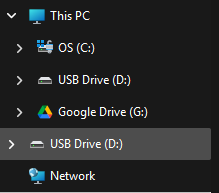
Check the drive letter assigned to the SD card, such as:
- G:
- H:
- D:
Step 2: Open Command Prompt
Press:
Windows + R
Type:
cmd
and press Enter.
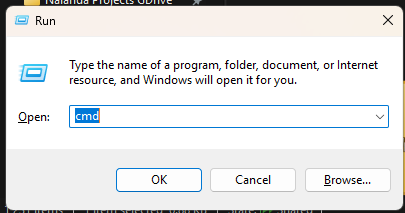
This will open the DOS Command Prompt window.
Step 3: Enter the FAT32 Formatting Command
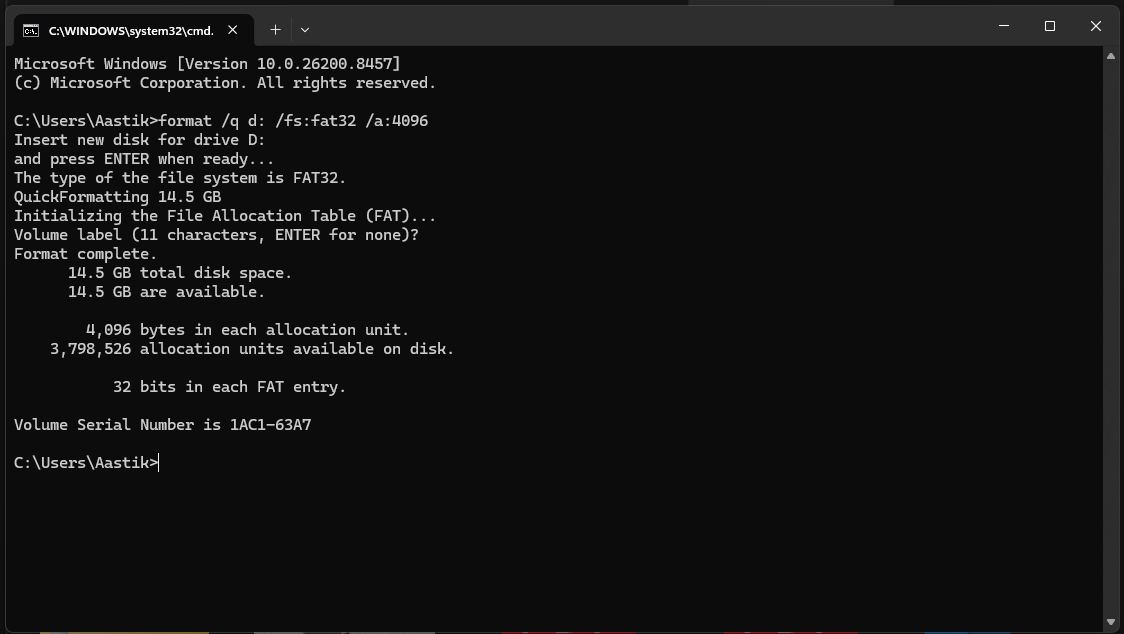
Type the following command:
format /q d: /fs:fat32 /a:4096
Then press Enter.
Replace g: with your actual SD card drive letter.
Example:
- If your SD card appears as H drive:
format /q h: /fs:fat32 /a:4096
Understanding the Command
| Command Part | Description |
|---|---|
| /q | Quick format |
| /fs:fat32 | Formats the card in FAT32 |
| /a:4096 | Sets allocation unit size to 4096 bytes |
Important Notes
- There must be a space after format
- Ensure you select the correct drive letter
- Formatting will erase all existing data on the SD card
- FAT32 formatting is required for proper DWIN compatibility
Why Windows Right-Click Format May Not Work
In many cases, the standard Windows format tool:
- Does not completely format large SD cards to FAT32
- Uses incorrect allocation settings
- Causes DWIN displays to fail during file detection
That is why DWIN recommends using the DOS command method.
Recommended SD Card Size
For best compatibility:
- Use 8GB to 16GB SD cards
- Use reliable branded SD cards
- Avoid damaged or counterfeit memory cards
Creating the Correct DWIN_SET Folder Structure:
After formatting the SD card successfully, the next step is to prepare the correct folder structure required by the DWIN display.
The DWIN T5L DGUSII display only recognizes files stored inside a folder named:
DWIN_SET
This folder must be created in the root directory of the SD card.
Step 1: Create the DWIN_SET Folder
Open the SD card drive on your computer and create a new folder named exactly:
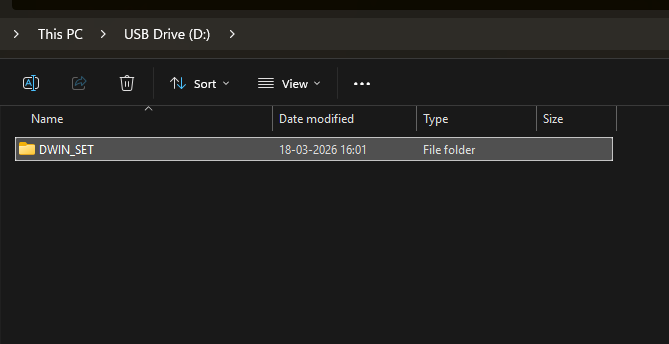
DWIN_SET
Important:
- Folder name must be in uppercase
- Do not add spaces or extra characters
- Other folder names will not be recognized by standard DWIN displays
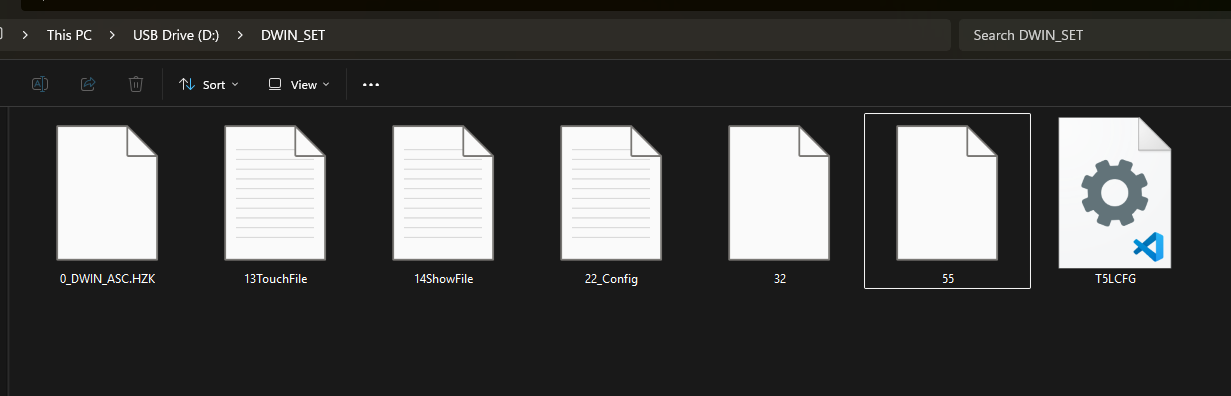
Step 2: Copy Required Project Files
Place all necessary project files inside the DWIN_SET folder.
Common files include:
- ICL image files
- Font libraries
- Configuration files
- DGUS project files
Example structure:
SD Card
│
└── DWIN_SET
    ├── 13.BIN
    ├── 14.BIN
    ├── T5L_UI.ICL
    ├── CONFIG.TXT
    └── FONT.BIN
Important Notes About Image Files
For T5L DGUSII displays:
- JPEG images are not directly supported
- Background images must be converted into ICL format
- ICL files are generated using DGUS software
If JPEG files are copied directly, the display may fail to load images properly.
Step 3: Safely Remove the SD Card
After copying files:
- Save all changes
- Properly eject the SD card from the computer
- Avoid removing the card while files are still being copied
Improper removal can corrupt the files and cause download failures.
Step 4: Start the Download Process
To download the project into the DWIN display:
- Power OFF the display
- Insert the SD card
- Power ON the display
- Wait for the blue download screen
- Allow the download process to complete fully
Do not remove power during downloading.
Step 5: Remove the SD Card After Download
When the blue screen indicates download completion:
- Power OFF the display
- Remove the SD card
- Power ON the display again
The project should now run successfully on the display.
Conclusion:
SD card detection problems in DWIN displays are usually caused by incorrect formatting, improper folder structure, unsupported file formats, or power interruption during downloading. By properly formatting the SD card in FAT32 format, creating the correct DWIN_SET folder structure, and following the recommended download procedure, most issues can be resolved easily.
Always remember:
- Use FAT32 formatting
- Use 4096 allocation size
- Keep files inside DWIN_SET
- Never hot swap the SD card
- Maintain stable power during downloading
Following these best practices will help ensure reliable and successful project updates on your DWIN T5L DGUSII display.
Need assistance deploying these features? Contact us at nalandardlab@gmail.com for detailed technical documentation and complete project examples.