
Methods to Upload Code in DWIN UART Display
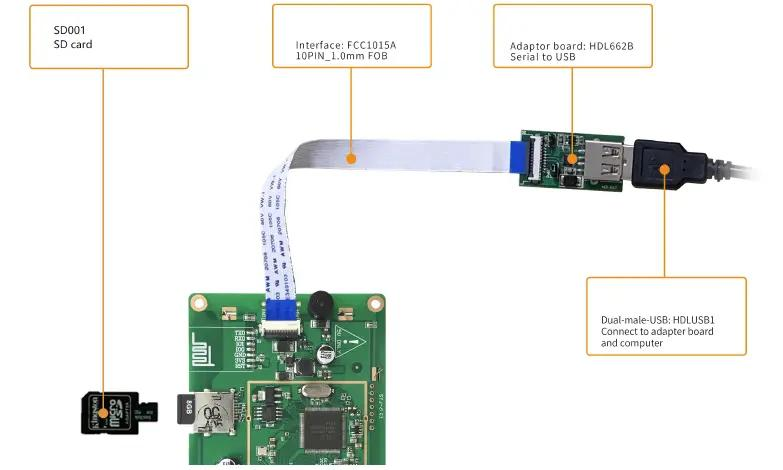
1. Upload via USB & Adapter Board (HDL662B)
In this method, you use a DWIN HDL662B adapter board to establish communication between your computer and the display.
Steps:
- Connect one end of the FFC (Flat Flexible Cable) to the terminal block of the DWIN display
-
Connect the other end of the FFC cable to the HDL662B adapter board
(Ensure the blue side of the cable faces upward on both ends) Use a double-male USB cable:
- One end connects to the adapter board
- The other end connects to your computer
- This setup enables communication for uploading code and updating the GUI
Note:
This method is not the fastest or most efficient way to upload code or update the GUI. It is mainly useful for testing or initial setup.
Because of this, we will not go deeper into this method and will focus more on the SD card method, which is simpler and more practical.
2. Upload via SD Card (Recommended Method)
The SD card method is the most commonly used and recommended approach for uploading code and updating the GUI in DWIN UART displays. It is simple, fast, and does not require a continuous connection to a computer.
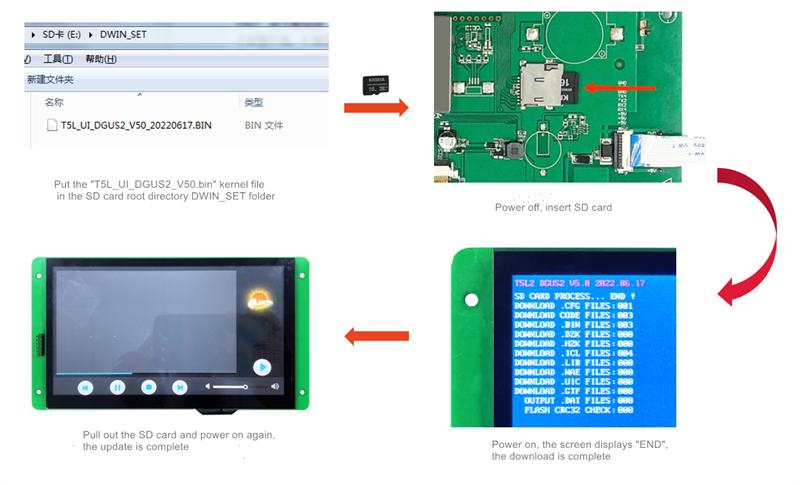
Steps:
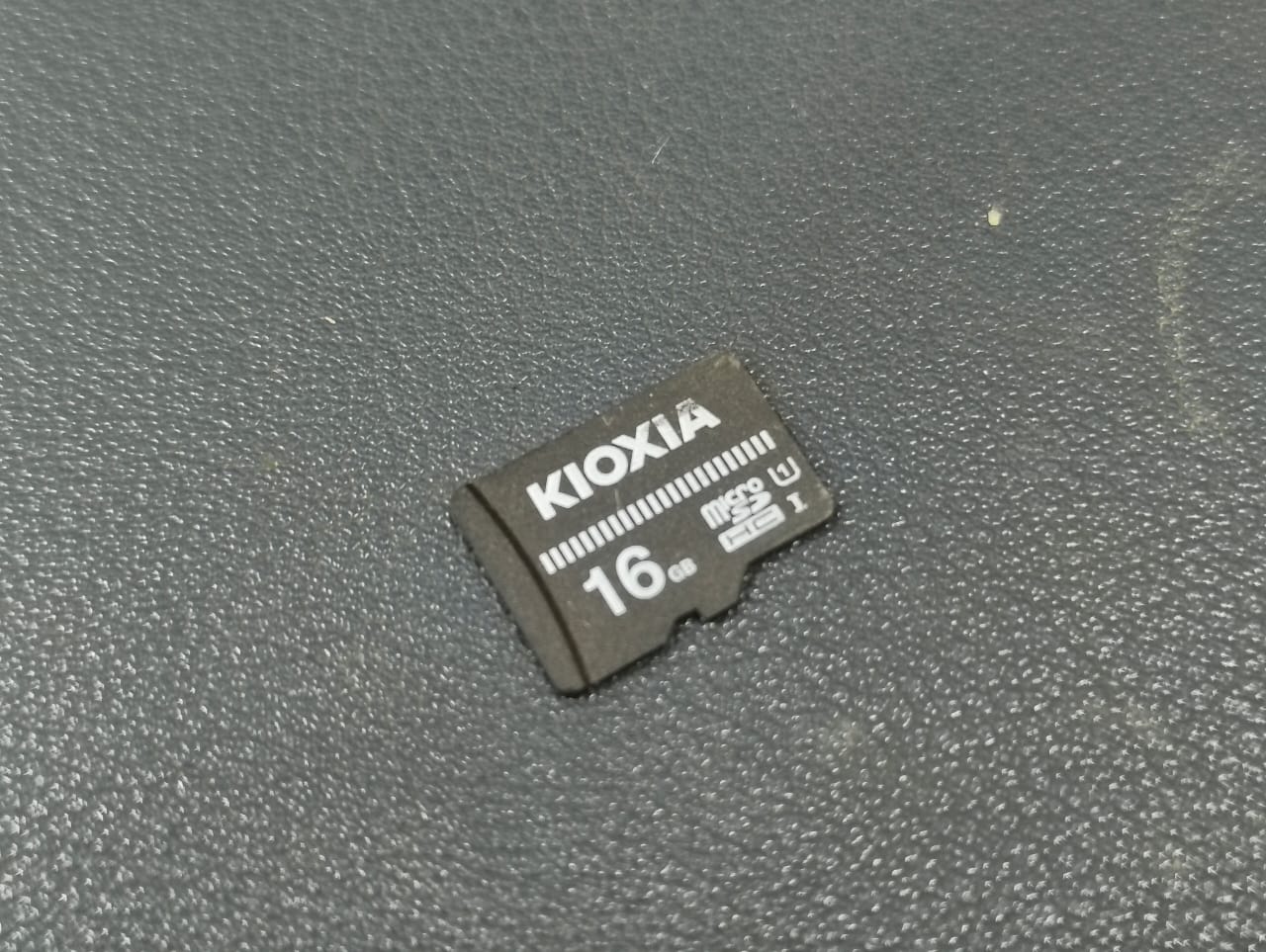
Steps-1:Use an SD card (recommended capacity: 1GB to 16GB) for best compatibility
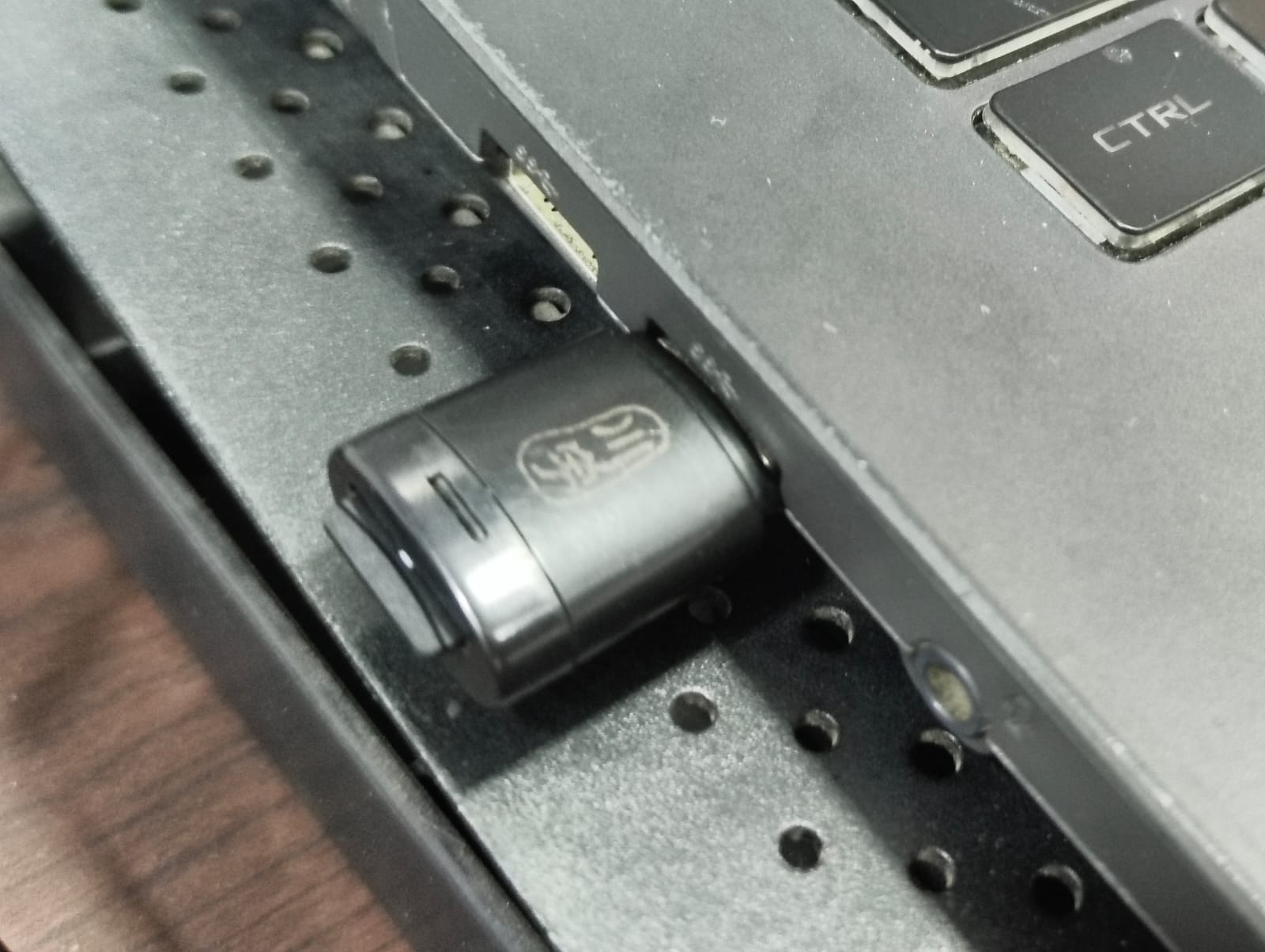
Steps-2:Insert the SD card into your computer using an SD card reader
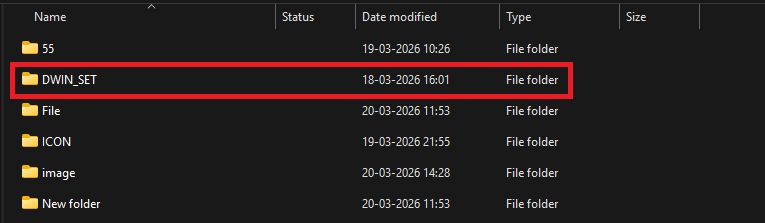
Steps-3:Copy the DWIN_SET folder to the SD card
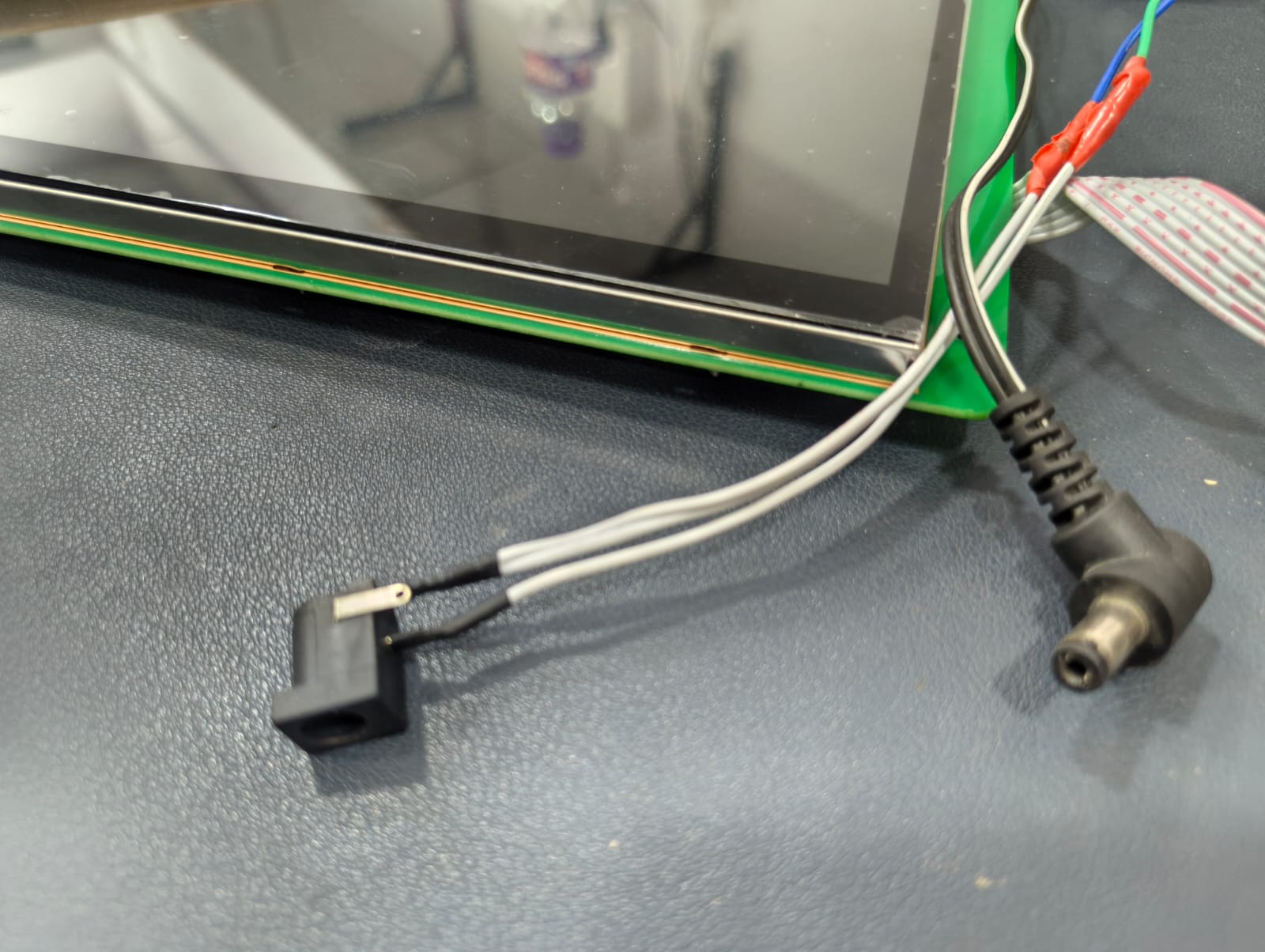
Steps-4:Turn OFF (remove) the power supply from the display before inserting the SD card
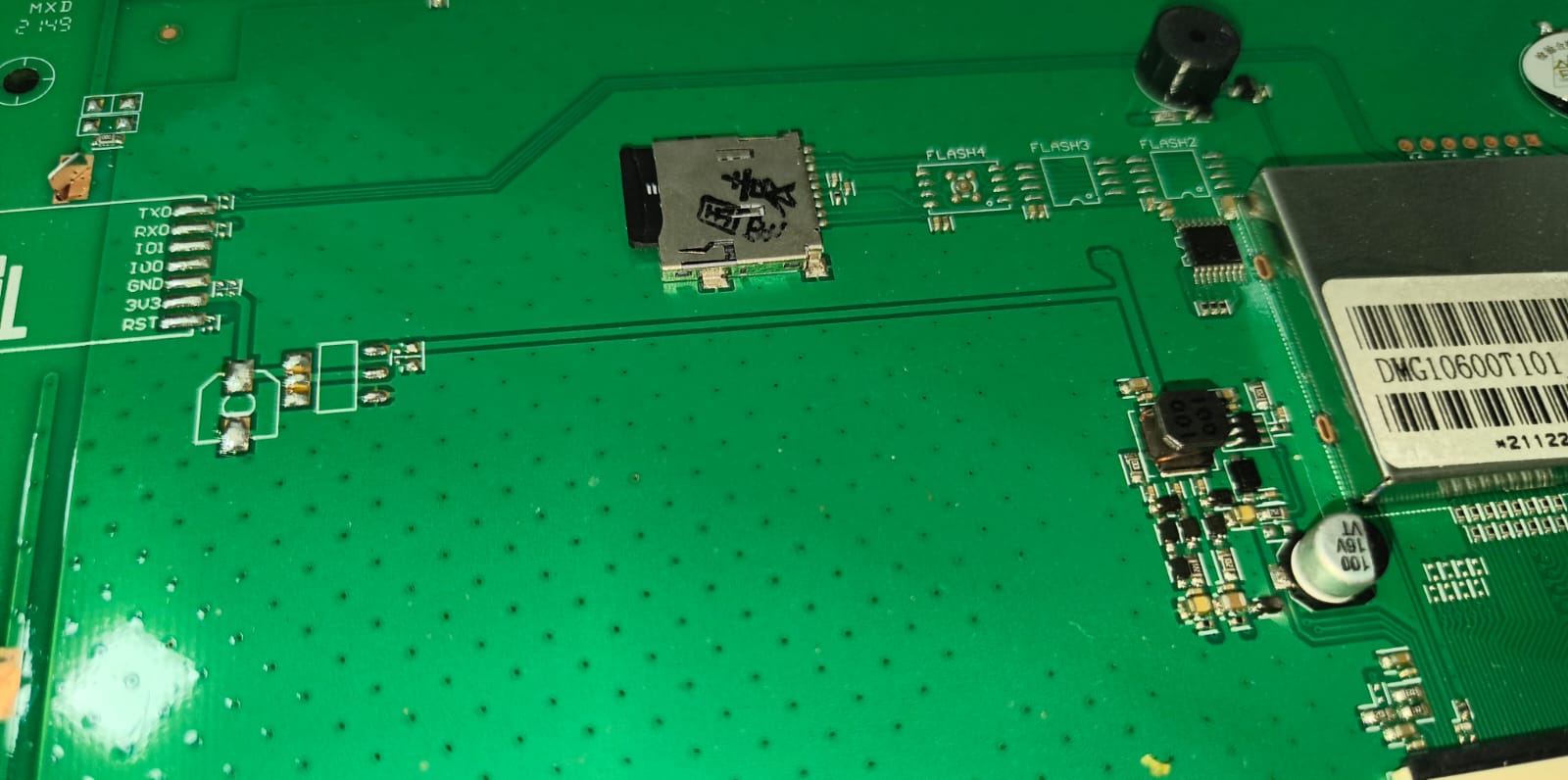
Steps-5:Insert the SD card into the SD card slot of the display
Steps-6:Power ON the display by providing the power supply
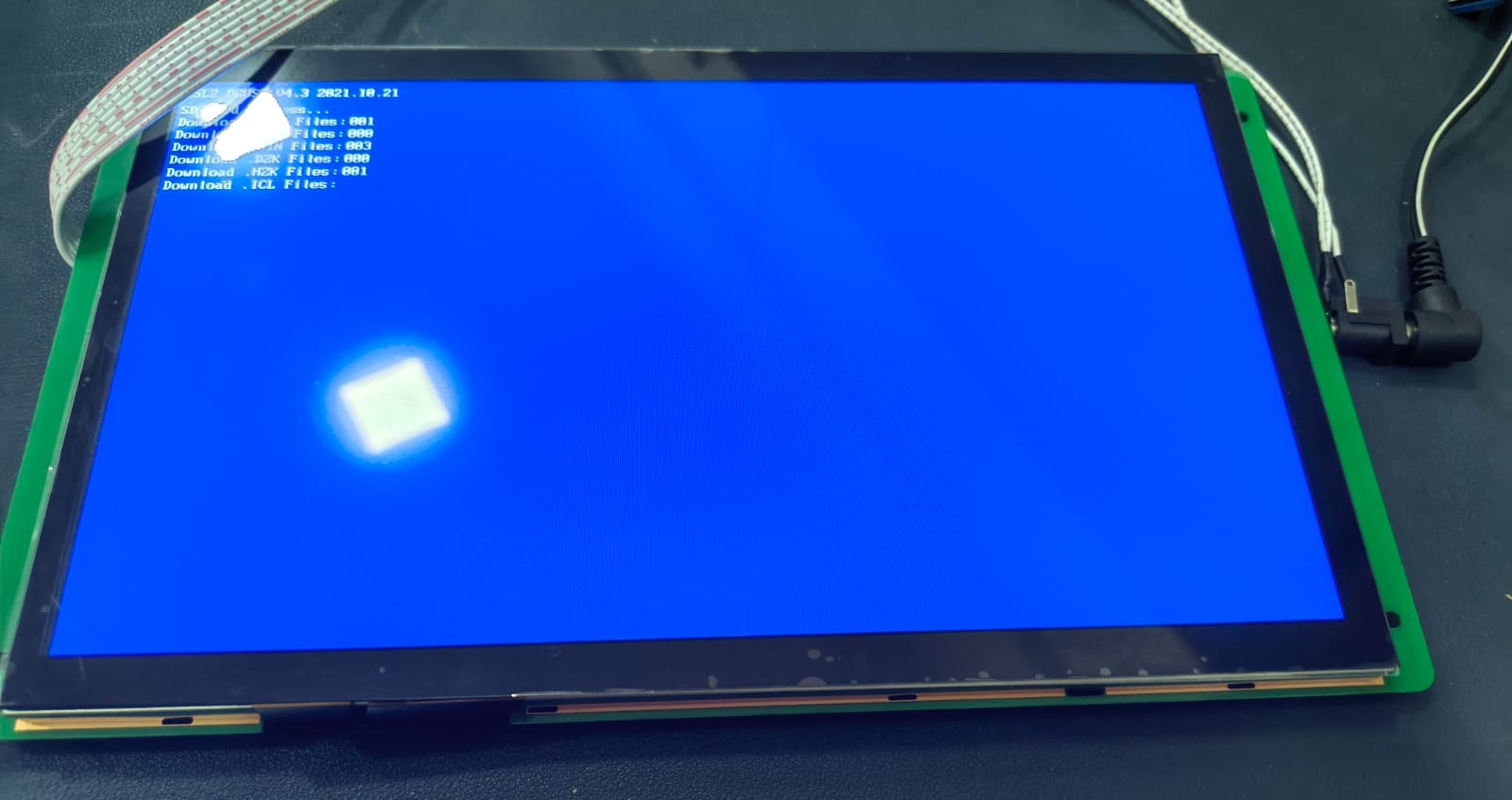
Steps-6:Verify the Upload Status
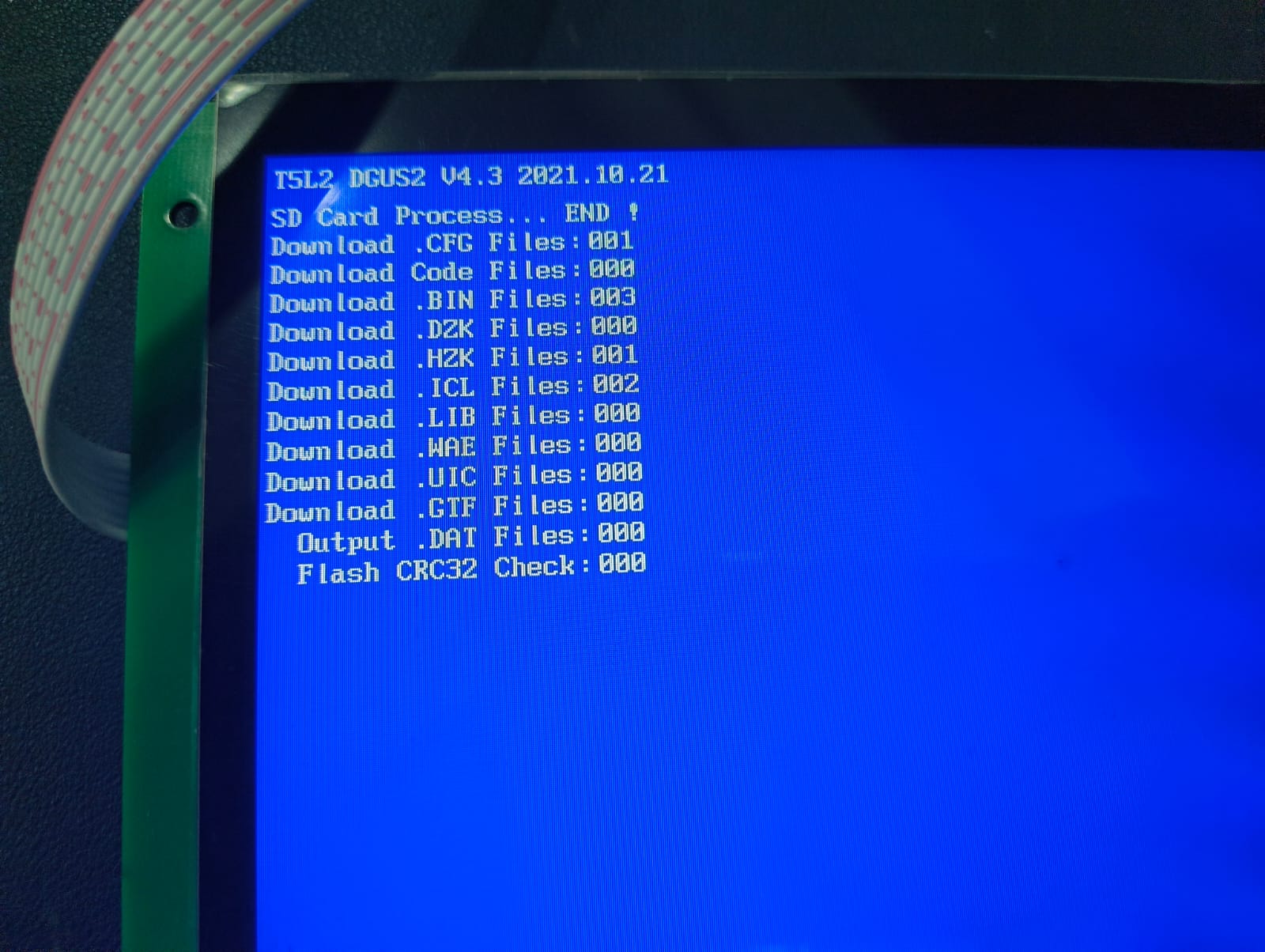
- After powering ON the display, observe the screen carefully
- If the files are displayed with proper values and appear to be uploaded successfully, it means the GUI has been uploaded correctly.
Note:
- If all file values show “0”, it means the GUI was not uploaded properly
In that case, you should:
- Format the SD card again (ensure FAT32 format)
- Re-copy the correct DWIN_SET folder
- Repeat the upload process
Step 7: Finalize the Update
- Turn OFF (remove) the power supply from the display
- Remove the SD card from the display
- Power ON the display again
After restarting, you should see that the GUI has been successfully updated and is running on the display.
Need assistance deploying these features? Contact us at nalandardlab@gmail.com for detailed technical documentation and complete project examples.